
Showing posts with label dictionary. Show all posts

Saturday, July 28, 2012

Voice Dream Reader App For iOS


Voice Dream Reader is a text-to-speech app for people with reading disabilities or people who just prefer to listen to text. The app costs $4.99 in the App Store. Click here to download the app. Voice Dream Reader can extract text from ePub, PDF, Word, Pages, Keynote and web pages and then read them aloud using text-to-speech with synchronized highlighting. Watch the above video to learn more. Voice Dream Reader comes pre-loaded with the Heather voice, but additional voices can be purchased for $0.99. One downside is that all text formatting and all images are extracted and not visible.

While reading a document you can change the speech rate, text size and background color. While reading a document it is easy to skip around in the text and look up words. The app cannot read the definitions so you will need to turn on VoiceOver. It is unfortunate that the app does not read the definition because some people may not be familiar with VoiceOver. Voice Dream Reader can be synced with a number of cloud services including Dropbox to get documents into the app.
In all Voice Dream Reader is a solid app. For some, the built in Speak Selection feature may be good enough. With iOS 6 coming in the fall, Speak Selection will have syncronized highlighting which will make some features of Voice Dream Reader obsolete. If you want the ability to create playlists or read with multiple voices this app is for you.
Click read more below to view screenshots of Voice Dream Reader in action.




Thursday, December 22, 2011

iOS 5 Tip: Look Up Any Word


A new feature in iOS 5 allows you to get a definition of any word from any app. To get a definition of a word simply select the word by holding down on it for a couple of seconds and then tap define. A dictionary will appear with that word defined. When you are done tap done to return to your app.

Sunday, December 18, 2011

Google Dictionary Defines Any Word on the Web


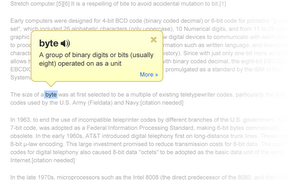
Google Dictionary is a free extension available for Google Chrome. To download the extension click here. Once downloaded simply double click on any word on a web page to view its definition or hear the word read aloud. Google Dictionary is perfect for quickly looking up unfamiliar words. To learn about other Chrome extensions click here.

Friday, June 17, 2011

Microsoft Word's Auto-Summary Feature


In Microsoft Word 2007 there is a feature that allows you to automatically summarize a document. This feature is very good for reading long articles quickly. To access this feature click on the customize quick start menu arrow at the top left of the screen. Then select more commands from the drop down menu. Next search for the Auto-Summary tool in the right hand column. Once you add this option you will be able to access it from the top right of your word documents. When the icon is clicked you will have four summary options. To see this feature in action watch the video above. Hope this tip helps.

Wednesday, June 15, 2011

Kurzweil 3000 Overview

Watch this 52 minute video to learn all about Kurzweil 3000, or read the summary below:


Kurzweil 3000 is writing and reading software that has many great features. Kurzweil is available for both Mac and PC, but the PC version has more features then the Mac version.  Kurzweil has optical character recognition. (OCR) What this means is that a document that is scanned can be read back to you.  As the words are read aloud, they are highlighted.You can turn off the sound if you just need help with tracking and not decoding.  There is an option to speed up or slow down the voice, and the pace of highlighting according to your preference. Kurzweil comes with a few computerized voices, but more can be added.


Once the document is scanned it can also be annotated with text boxes, highlights and circles. This allows you to do anything you could do with hard copy print material. Kurzweil is great for completing worksheets, tests and quizzes. If a document contains many blank spaces Kurzweil has a feature to add a text box on each blank. This feature can be found under tools and then fill in the blanks.

 Kurzweil is also great for writing. It has spell check, word prediction and web layouts. One of the best parts of writing with Kurzweil is that the text is read back to you, which is a great editing tool. Kurzweil has a built in dictionary for quick reference. Another handy feature is "read the web" this feature allows a web page to be read aloud with out copying and pasting the text in to Kurzweil. With read the web a toolbar appears with a read button a the bottom of your browser. To read the web simply select the desired text and press the read button. Kurzweil is a great tool for reading and writing. To learn more about Kurzweil, click here visit the Kurzweil webpage. For a video about Kurzweil's virtual print click here. Stay tuned for more Kurzweil tips, tricks and videos.